Navigate to truck appointments and add one or multiple containers.
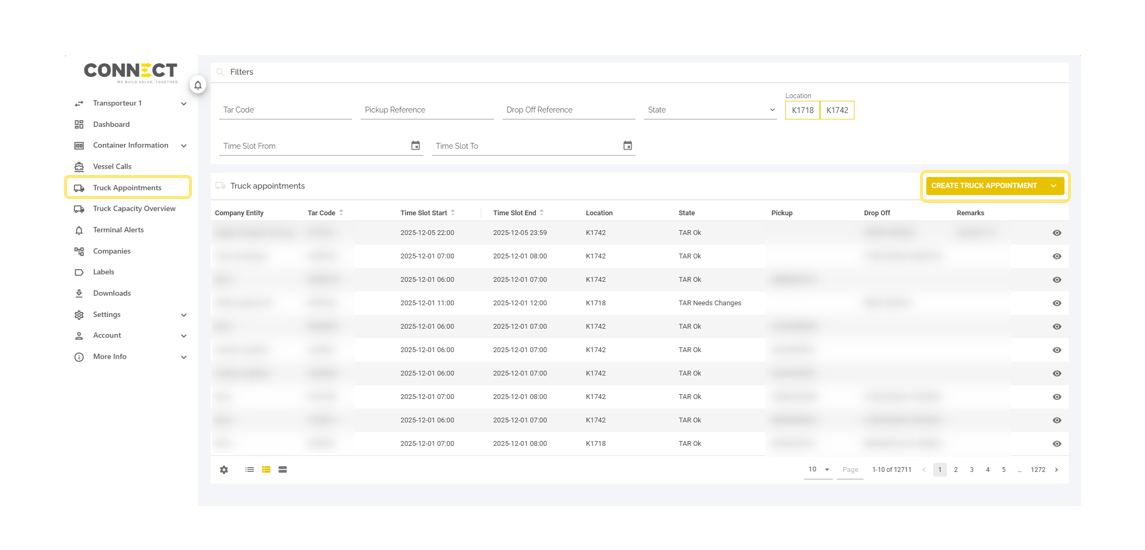
1. To pick up a container the following options are available:
- Import containers: fill in the container number. The container must be known to the terminal meaning we must have received the discharge information of the vessel from the carrier.
- Empty containers: fill in the booking reference or specific container that will be picked up.
- Transhipment containers: fill in the container numer. The container must be released by the carrier, otherwise it will not be possible to book a pick up.
- Export containers: fill in the container numer. The container must be released by the carrier, otherwise it will not be possible to book a pick up.
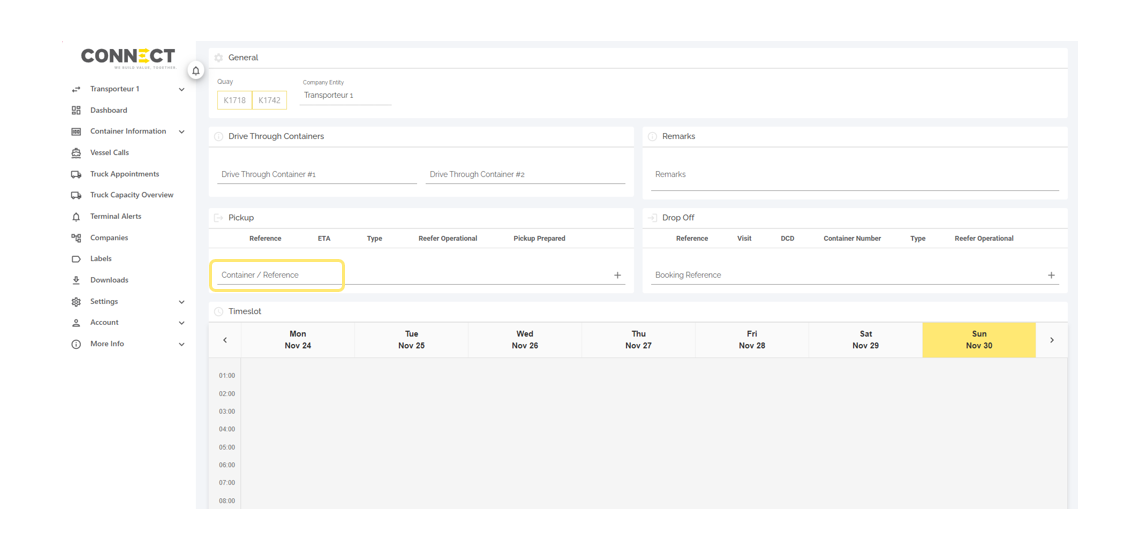
2. To drop off a container the following options are available:
- Export containers: fill in the booking reference, adding a container number is optional.
To book a timeslot The Dynamic Controlled Delivery (DCD) date must be known and within the next 7 calender days.
When ETA vessel is +10 days in the future, no DCD will be available = no timeslot selection possible:
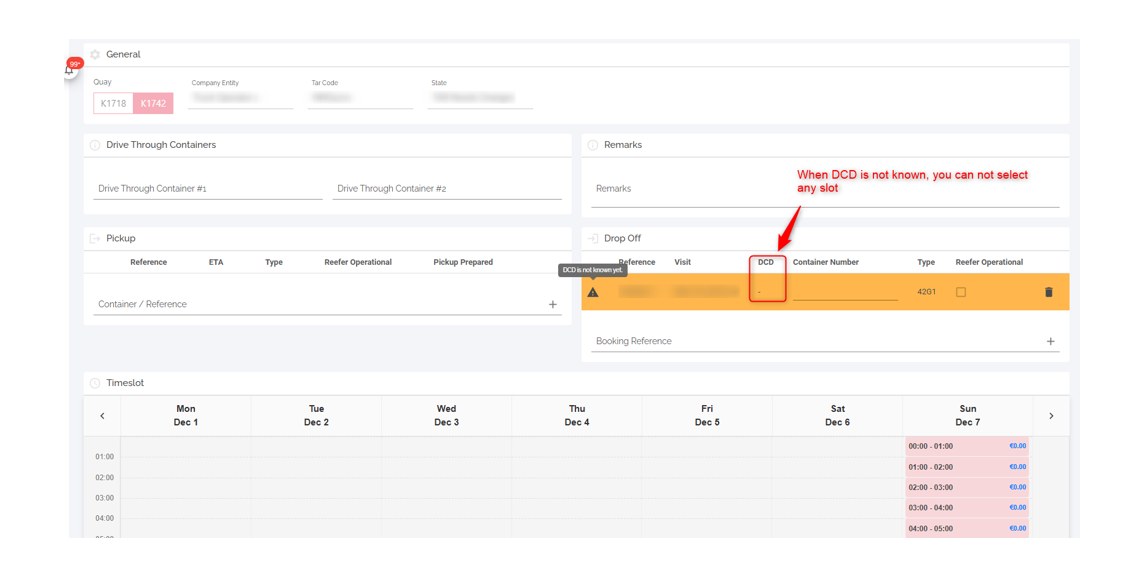
When DCD is available, you can only book a timeslot as from the DCD date:
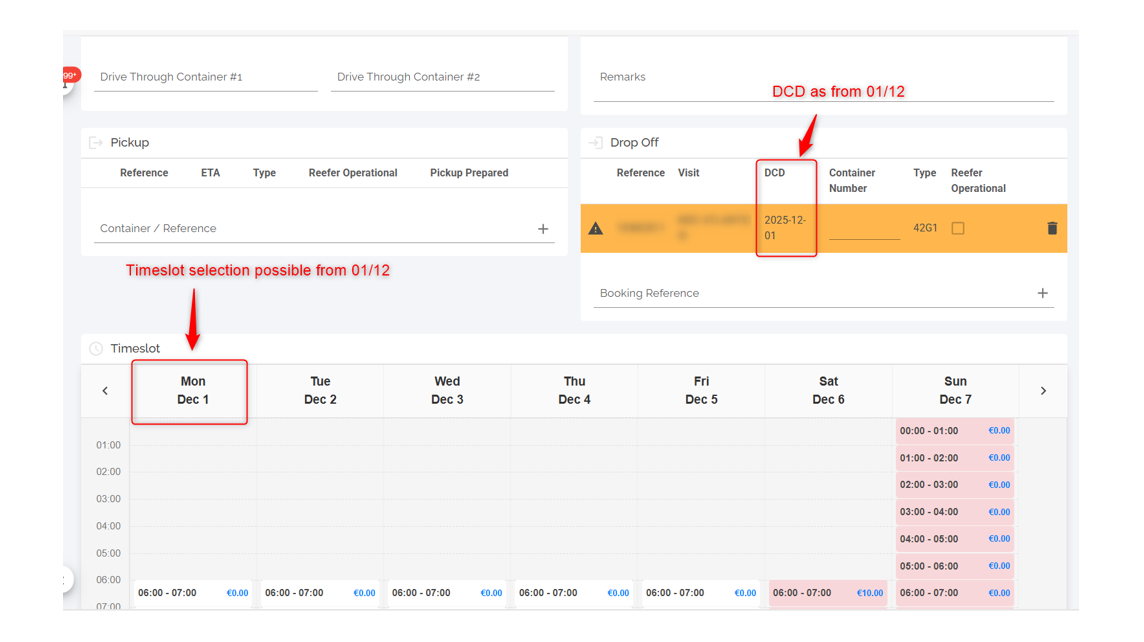
- Empty containers: fill in the booking reference.
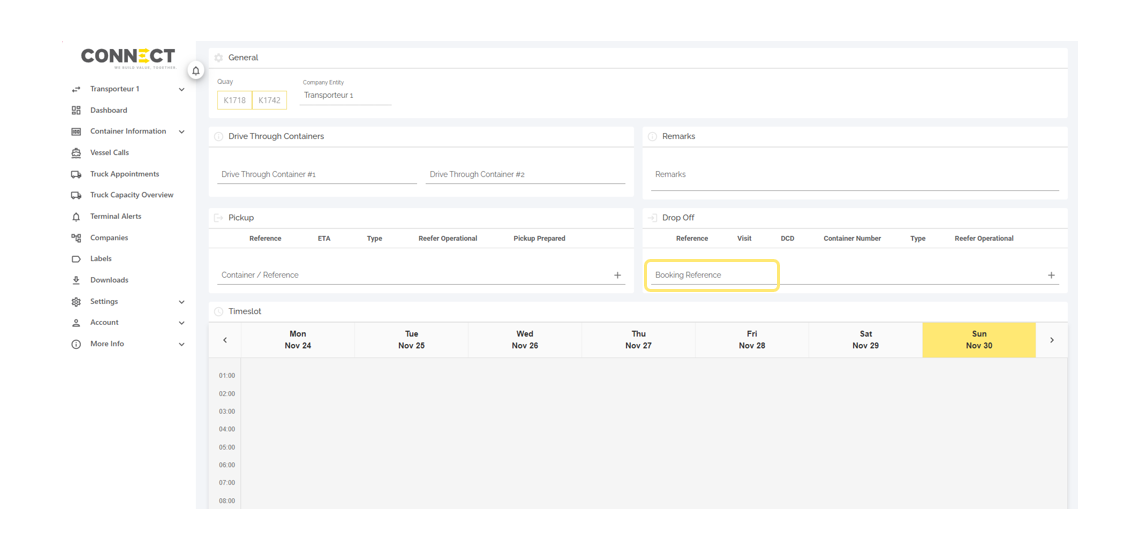
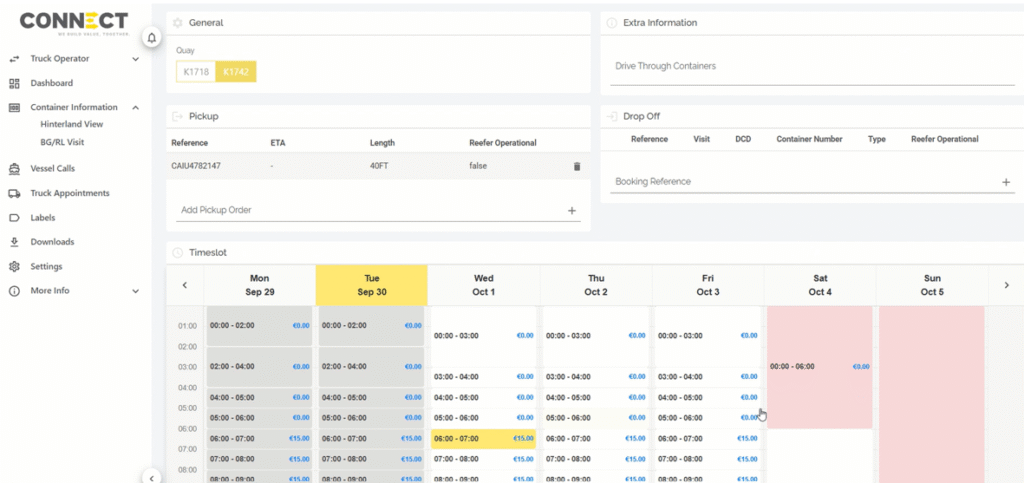
If no timeslots are visible, select the quay where you are dropping off the container(s):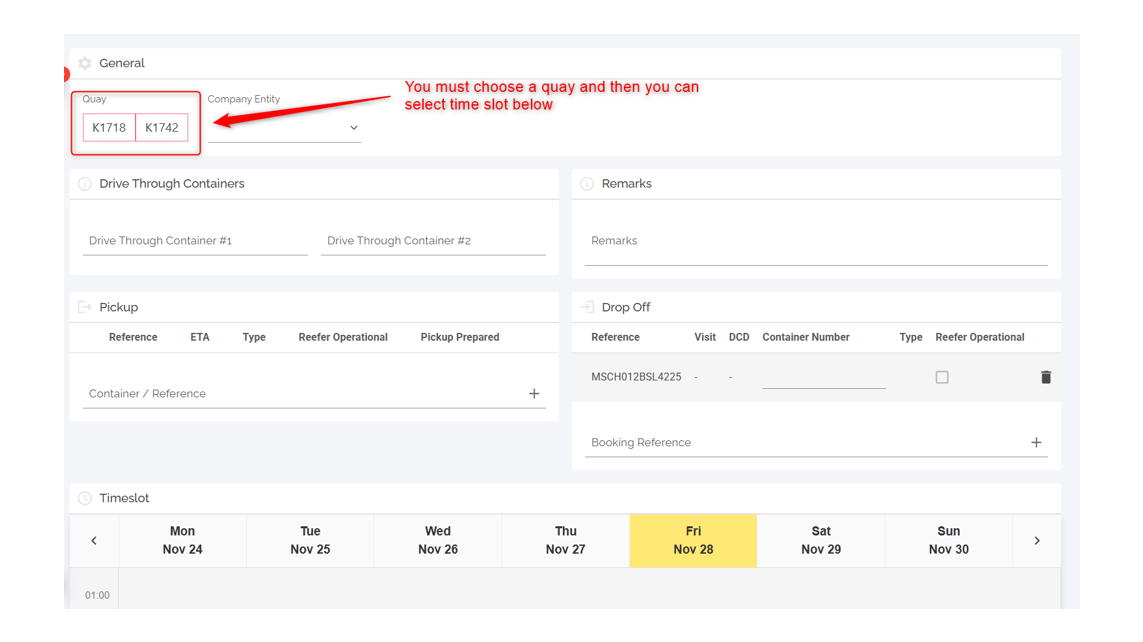
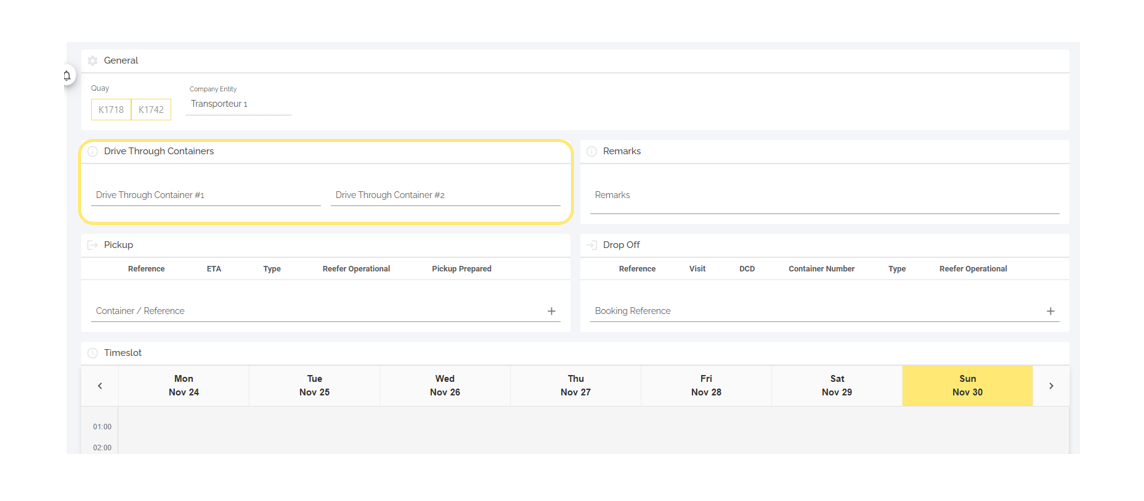
3. To add drive through containers (containers that stay on truck):
- Fill in the container number(s) in the section “Drive Through Containers”.
- Up to two containers can be added.
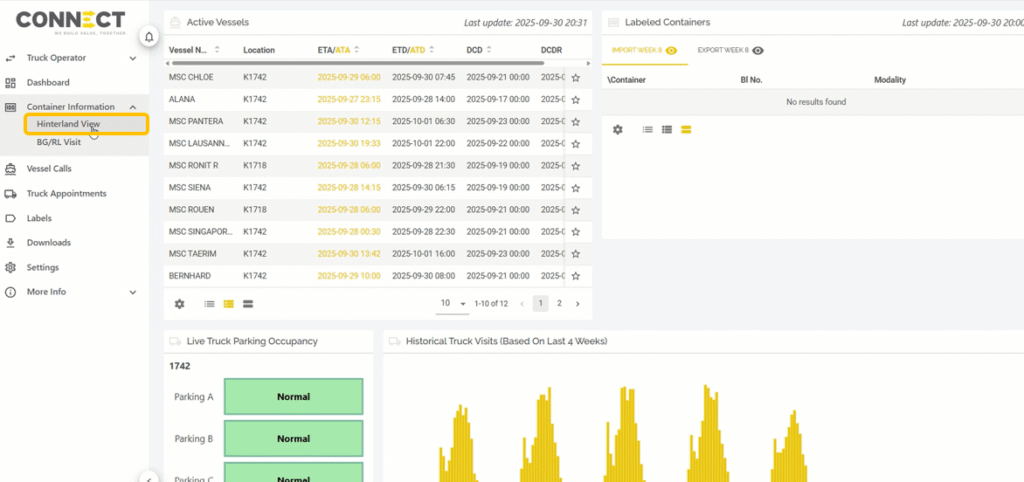
Navigate to the Hinterland view in the left hand menu.
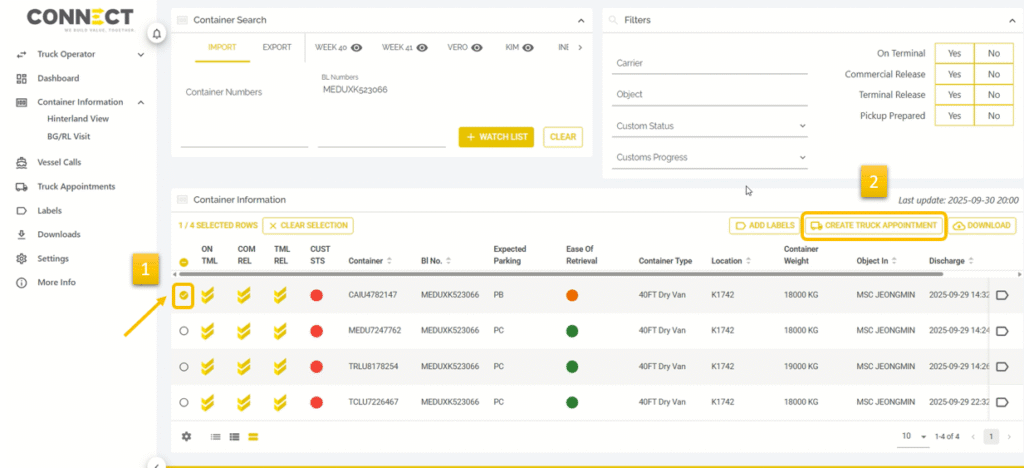
Now simply paste container numbers, BLs or booking references. We will show data related to the containers or bookings like if the container has been discharged, the location or the customs status from CPU.
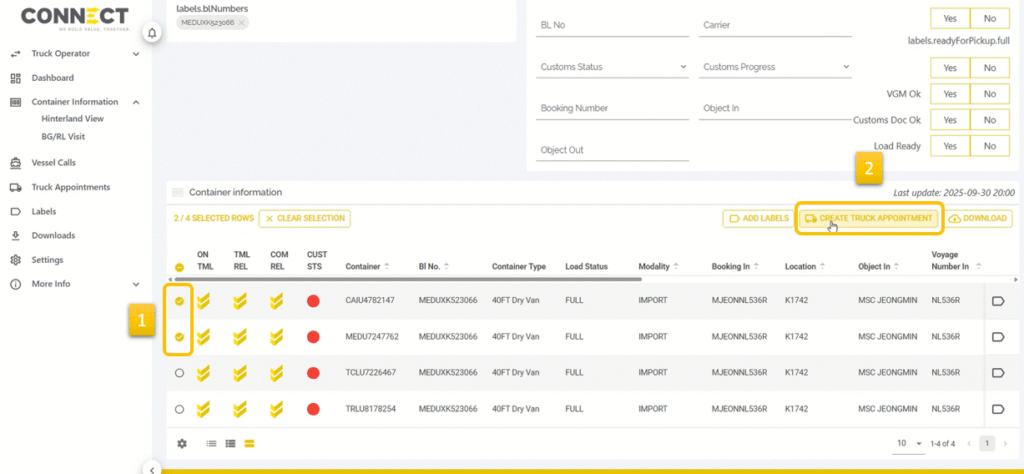
(1) Select the relevant container and (2) click on “Create Truck Appointment”.
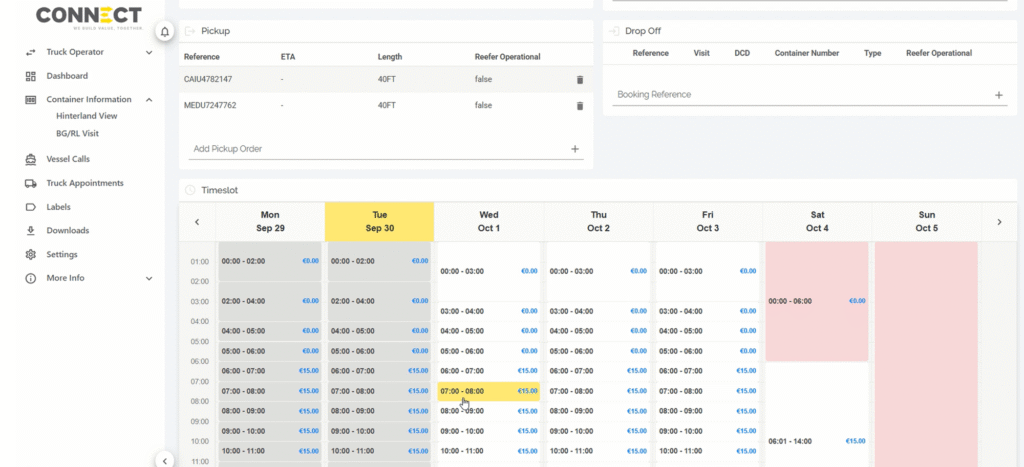
Then select a timeslot.
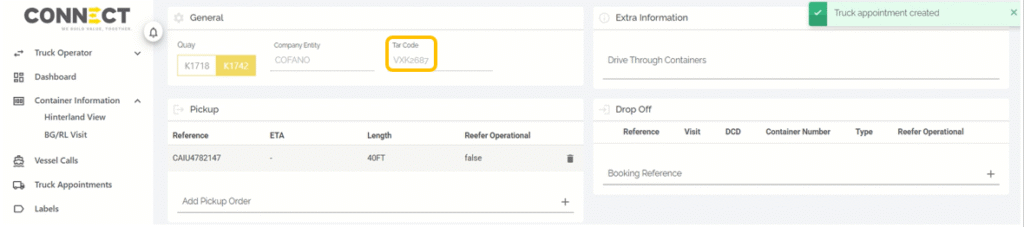
Now click on Save at the bottom of the page.

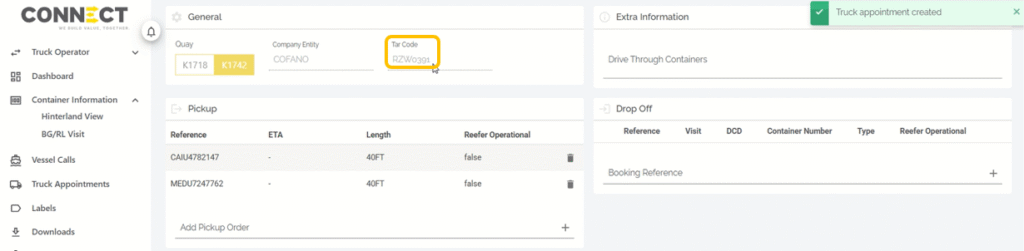
The TAR will be shown on top of the page.
You can also start by adding containers to a watchlist first. Paste container numbers, bill of ladings or booking references. Select them and click on “add to watchlist”.
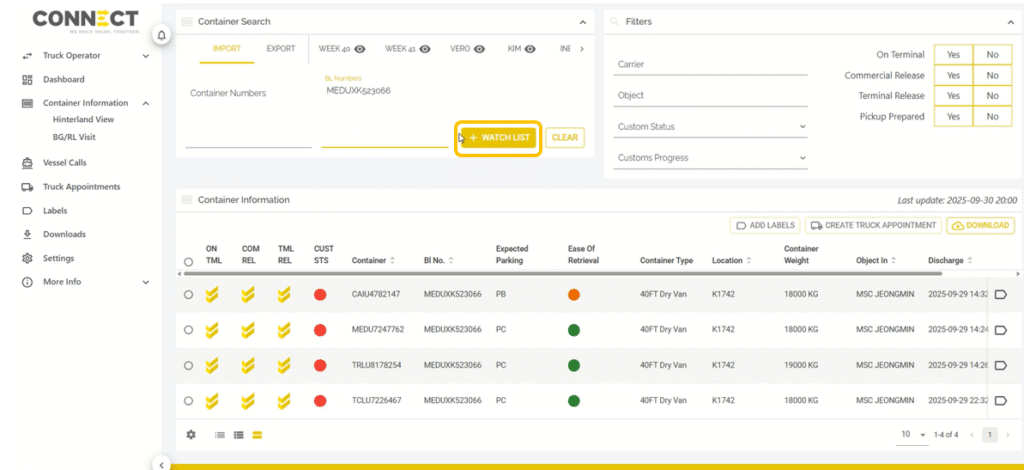
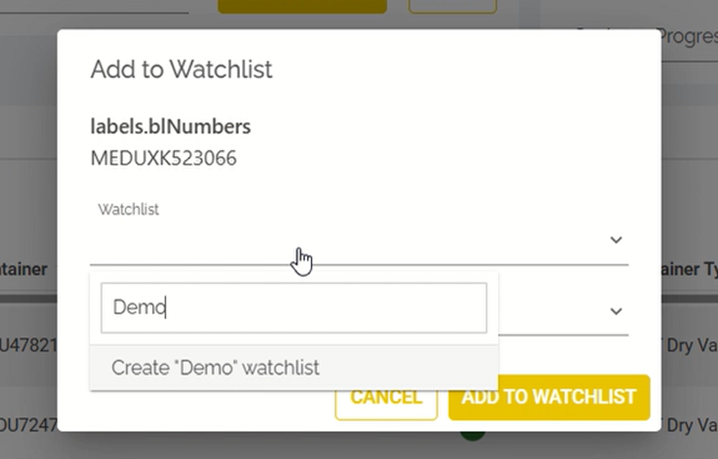
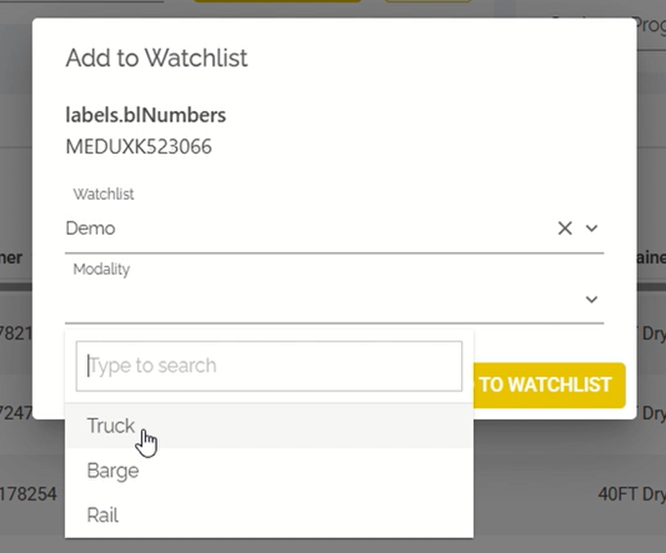
Next, choose or create a watchlist by typing in a new name. Then select the mode of transport with which the containers will be picked up.
Containers added to a watchlist will be saved on that watchlist. From the watchlist you can (1) select one or multiple containers and (2) create a truck appointment.
Select a timeslot and click on save.

The TAR will be shown on top of the page.
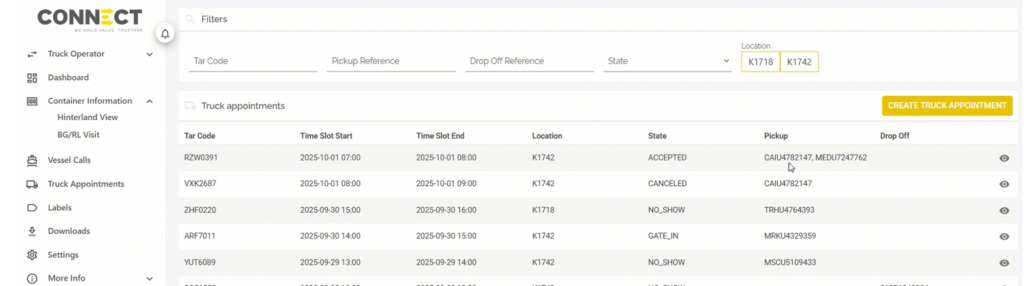
By navigating to Truck Appointments in the left hand menu you can find an overview of all booked truck appointments and their statuses.
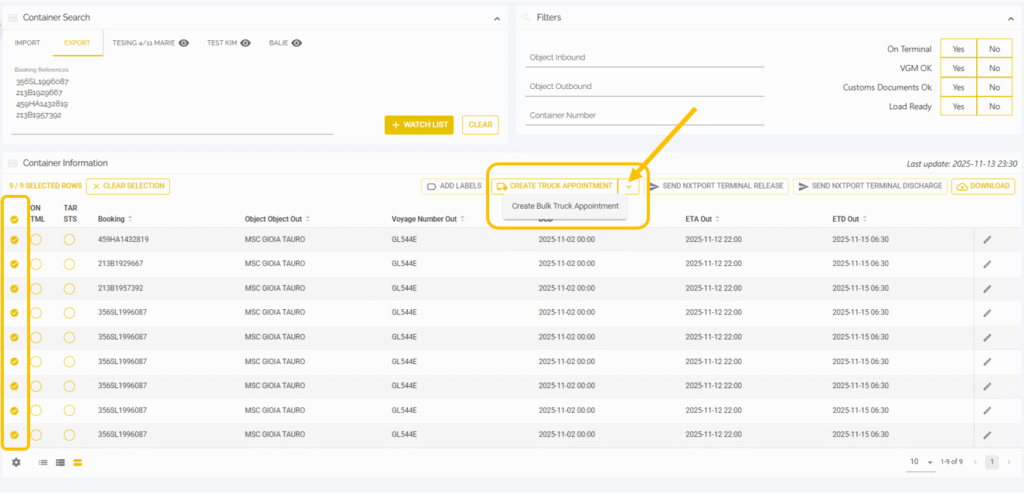
Use this function to create TARs in bulk (replacing the mass-upload functionality in ePortal). Select multiple containers or bookings and click on the arrow next to “Create Truck Appointment”.
Then select the option “Create Bulk Truck Appointment.” With this function, one TAR will be created separately for each container or booking within the same time slot.